Getting started for admins
This guide is for the Owner or an Admin of a new workspace. Read it top to bottom once: the sections follow the order of setup, except that if you will use your own domain, start its verification (Verify a domain) before you connect the agent. People who only open previews can read the shorter Getting started for sharers.
What Houseguest is
Section titled “What Houseguest is”Houseguest™ lets named people use a web app that only runs on your private network, for a set time, with no VPN and nothing opened to the internet. You run a small agent next to the app; it dials out to the Houseguest edge and keeps that one connection open. Your team then opens previews in the console, and each person you name signs in with a code emailed to them until the preview ends.
A viewer’s request goes to the edge, which checks it before anything else happens. Only a signed-in viewer of an open preview gets through; the edge then sends the request down the agent’s tunnel, and the agent passes it to the app. Nothing on your side accepts incoming connections. How it works has the diagram.
The words you will meet everywhere:
- A workspace is your organization’s account in Houseguest. Agents, previews, people and settings all belong to one workspace.
- A preview is a time-limited grant: these hostnames, for these people, until this time. It is either
Invite (one single-use link per person, up to 7 days) or Standing access (one link and a list of
allowed addresses or whole
@domains, up to 1 year). - A viewer is someone given access to a preview. Viewers never get a console account.
- A member is someone on your team with a console account. What they can do depends on their role.
- An agent is the container (or Linux service) that forwards traffic from the edge to your apps. It forwards only the hostnames listed on its own host.
- The edge is Houseguest’s public server. It holds the certificates, checks every request, and carries traffic through the agent’s tunnel.
More terms: Glossary.
First sign-in and the second sign-in step
Section titled “First sign-in and the second sign-in step”The console is at console.houseguest.dev. There are no passwords. Your welcome email links to the sign-in page.
- Enter your work address under Email and press Email me a code. Sign in with Microsoft stands in for the code when Microsoft confirms your address; once your workspace has single sign-on, Sign in with single sign-on goes through your identity provider.
- Enter the 6-digit code from the email and press Sign in. The code works for 10 minutes, once. If it does not arrive, press Send a new code after 30 seconds (at most 5 codes an hour per address).
- The first time, the console opens on Sign-in and security, and nothing else is reachable until you add a
second sign-in method. Choose either or both:
- Add a passkey: your device’s fingerprint, face or PIN, a password manager, or a security key. A passkey only works on the console’s own address, so it cannot be phished from another site.
- Set up an authenticator app: scan the code into 1Password, Google Authenticator, Microsoft Authenticator, Authy or similar, then enter the 6-digit code it shows to confirm.
- Copy the 10 recovery codes shown next into your password manager. They are shown once. Each one signs you in once when your passkey or app is not at hand.
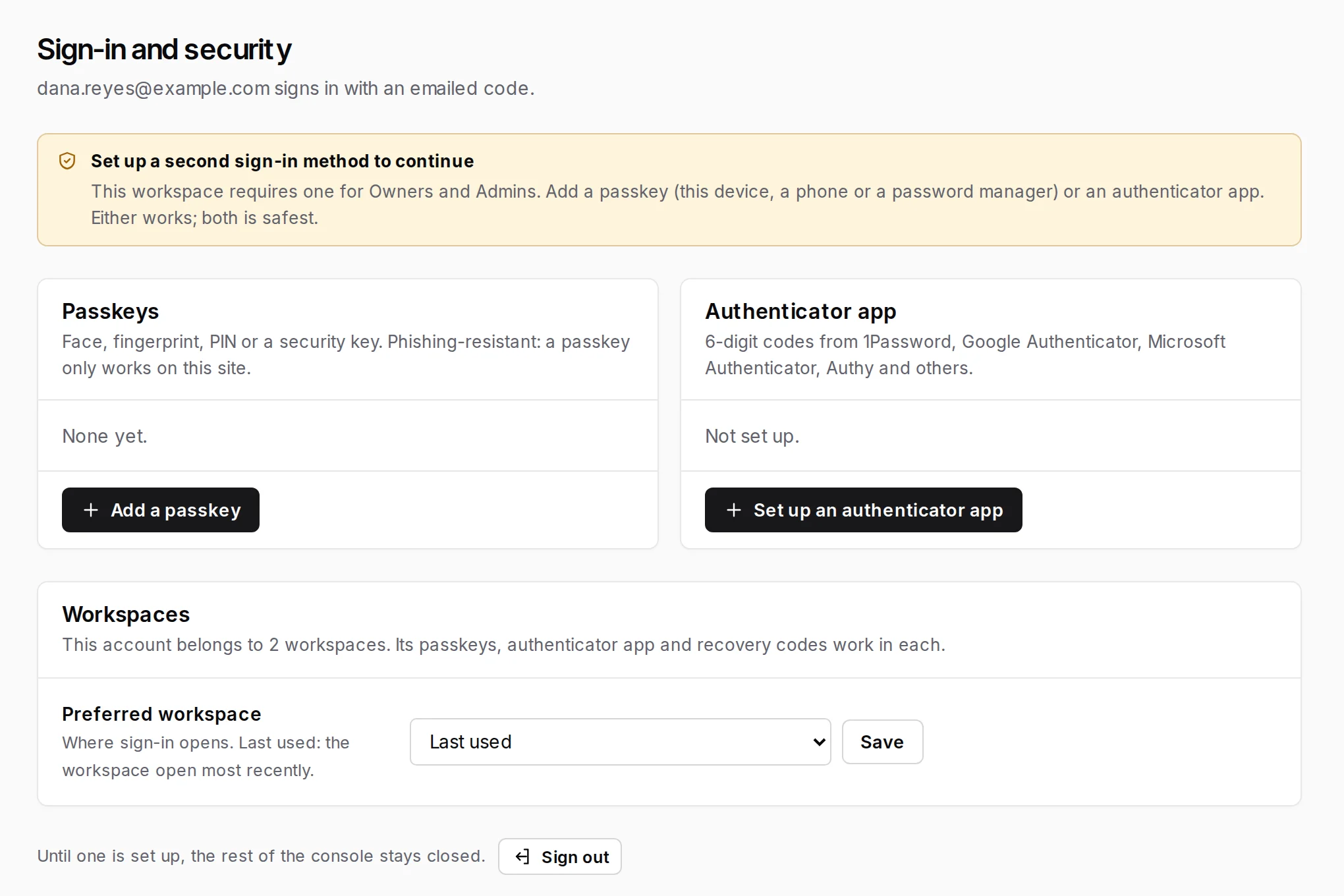
Why it is required. Owners and Admins can add agents, change who may see what, and invite people. An emailed code alone would make a mailbox the only lock on all of that. So a hosted workspace starts with Settings › Security › Second sign-in method set to Required for Owners and Admins. You can widen it to Required for everyone; we recommend you do not set it to Optional.
Every sign-in after that: the email code, then your passkey or the app’s current code. Sign in with a passkey on the first page skips the email code entirely.
If someone loses every method: another Owner or Admin opens the person’s member page and uses Reset sign-in methods. Their passkeys, app and recovery codes are removed, their sessions end, and they set up a new method at their next sign-in. Nobody can reset their own methods, and only an Owner can reset an Owner. If the person also belongs to another workspace, or you are the only Owner and locked out, contact us.
A console sign-in lasts 30 days without use in that browser, and each visit pushes the end out. An Owner can shorten that under Settings › Security › Session length, and Sign out all members ends every other session at once. Details: Second sign-in step.
Console tour
Section titled “Console tour”The left sidebar holds everything; each person sees only the areas their role allows. Overview opens with a setup checklist that ticks itself off as you work through this guide.
| Area | What it is for |
|---|---|
| Workspace block (top left) | Your workspace’s name and plan. With more than one workspace, it is the switcher |
| Overview | Setup checklist, the last 7 days at a glance, previews closing soon (with Extend), agent status, plan usage |
| Previews | Every preview you can see: Open, Scheduled, Ended, All; filters; bulk extend, move or end; New preview |
| Standing access | All standing-access previews with their lists, recent sign-in attempts from people not on a list, and the allowed viewer domains |
| Insights | Requests, sign-ins and refusals per day, busiest previews, why requests were refused, when viewers look, devices; CSV export |
| Agents | Your agents, whether each is connected, its hostnames and TCP services; Add agent |
| Domains & addresses | Your verified domains and CNAME target, and your Houseguest addresses |
| Members | People with console access, their roles, pending invites; Invite |
| Groups | Named groups of members, so one role grant covers all of them |
| Roles & permissions | The built-in roles, a comparison of what each can do, and your custom roles |
| Share groups | Named sets of previews, so you can let someone manage just that set |
| Activity log | Every console change, sign-in and viewer sign-in step, with who and when; export |
| Settings | Workspace name, session length, second sign-in policy, single sign-on, viewer rules, email sender name, audit streaming, transfer or delete |
| Billing | Your plan, usage this period and seats |
Along the top: Search or jump to… (⌘K or Ctrl+K) jumps to a page, preview or action; the bell lists what needs attention (previews closing soon, offline agents); your initials open Sign-in and security and Sign out. Times show in your browser’s time zone unless an Owner sets Time zone for display under Settings › General.
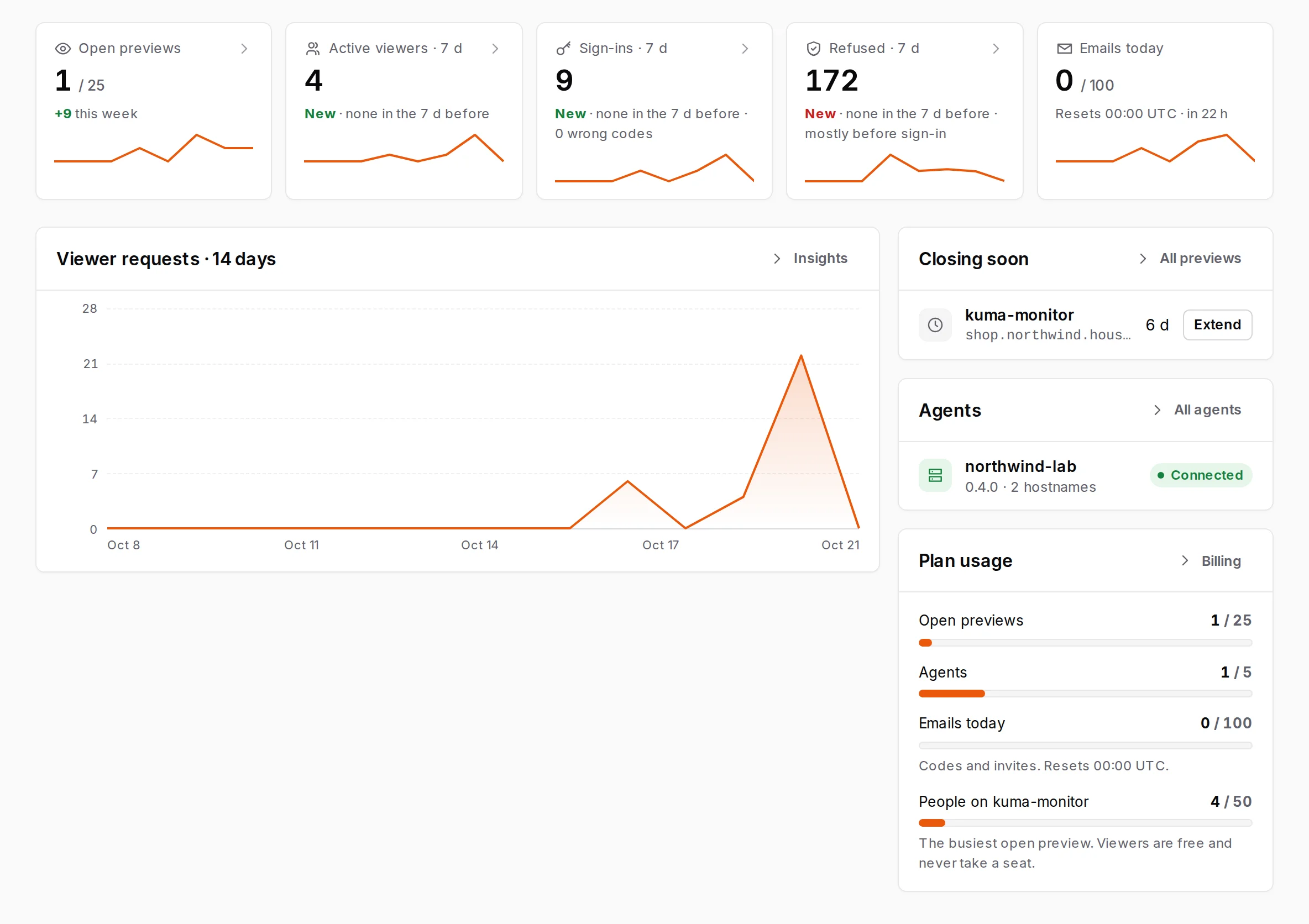
Screenshots in this guide come from Northwind demonstration workspaces. Their people, addresses and hostnames are fictional.
Connect an agent
Section titled “Connect an agent”One agent can serve many apps; most teams start with one. It takes about two minutes and needs no inbound firewall change.
Before you start, check three things:
- A Linux host (or any Docker host) that can reach the app inside your network, and can make outbound HTTPS
connections (port 443) to
tunnel.houseguest.dev. - The app is served over HTTPS with a certificate valid for its hostname, usually by the reverse proxy in front of it. The agent checks that certificate exactly as a browser on your network would. If an internal CA signed it, give the agent that CA (Apps with an internal CA). Plain-HTTP apps need a TLS reverse proxy in front.
- If viewers should use the app’s own hostnames, verify the domain first (next section). Without that, the names can still be shared as Houseguest addresses.
- Go to Agents and press Add agent.
- Fill in Name (usually the host it runs on) and Hostnames it may forward, one per line: exact names,
or
*.lab.example.comto choose names later in the console. This list becomes the agent’sHG_ALLOW, its ceiling. Find addresses with internal DNS is ticked by default: the agent looks each name up with its host’s DNS. Untick it to give one Internal address instead, usually the reverse proxy in front of the app, such as10.0.0.5:443. - Press Create join token. The page shows the install command three ways: Docker, Docker Compose and No Docker (Linux). Copy the one you need. The token in it works once, within 1 hour, and is not shown again. During early access, the download details for the agent come with your early-access invitation.
- Run it on the host.
- Leave the page open. Waiting for connection… turns into name connected within a few seconds of the agent starting.
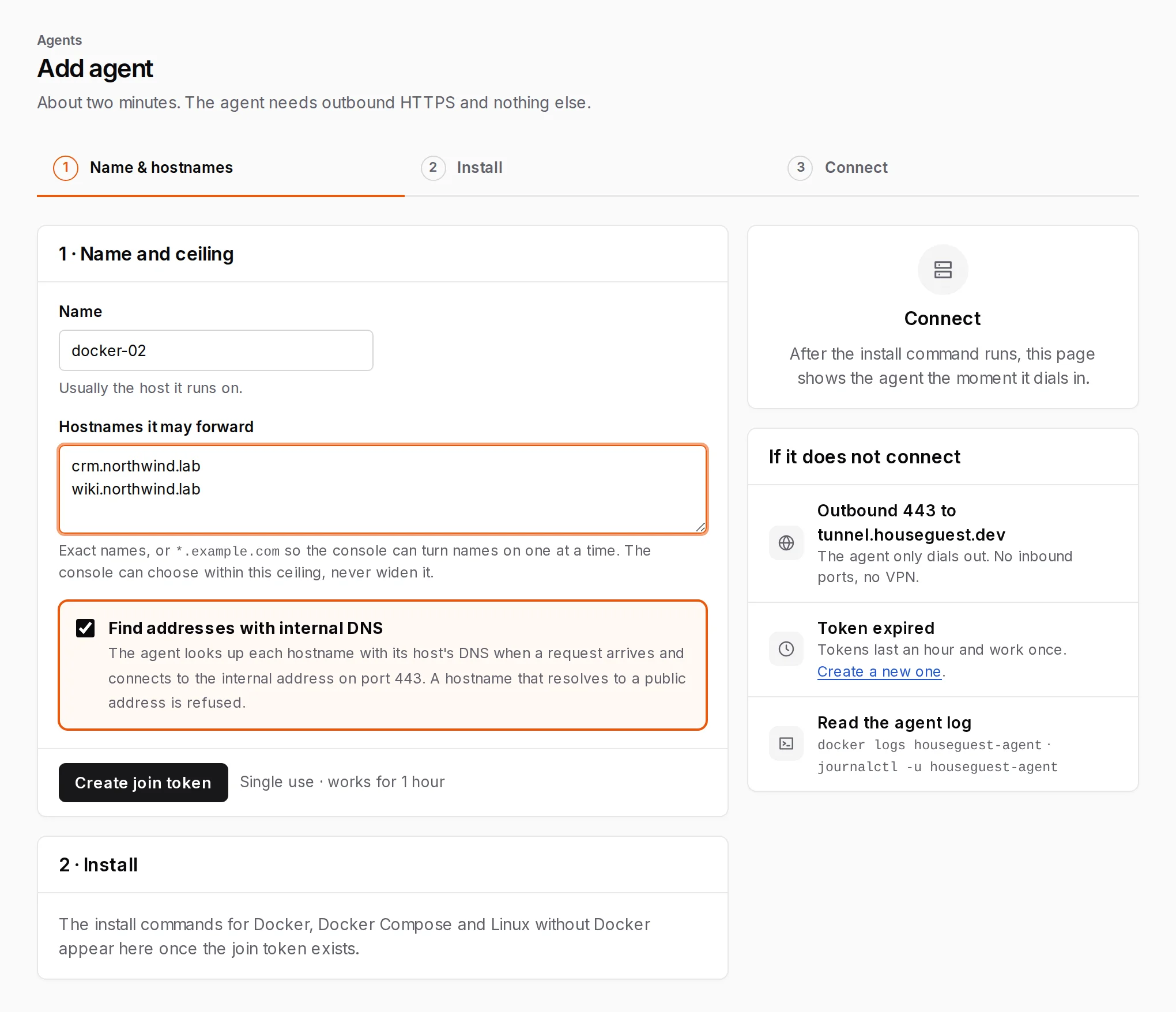
If it stays on waiting, read the agent’s log with docker logs houseguest-agent (or journalctl -u houseguest-agent without Docker). A healthy start says joined as agent N; HG_JOIN is no longer needed and
connected to tunnel.houseguest.dev. Common errors: Agent troubleshooting.
Keep the volume (houseguest-agent, or /var/lib/houseguest-agent without Docker). It holds the agent’s
private key. Lose it and the agent must join again with a new token.
Every setting and the full commands: Install an agent.
The allow-lists: HG_ALLOW and HG_ALLOW_TCP
Section titled “The allow-lists: HG_ALLOW and HG_ALLOW_TCP”The agent forwards only what its own host allows. These settings live in the agent’s environment, not in Houseguest, so nobody using the console (or a compromised edge) can widen them.
| Setting | What it holds | Example |
|---|---|---|
HG_ALLOW |
Web hostnames, comma-separated. A bare name goes to HG_UPSTREAM; name=addr:port sends one name elsewhere |
app.lab.example.com,legacy.lab.example.com=10.0.0.9:8443 |
HG_ALLOW wildcard |
*.domain allows any one name directly under it, once someone turns that name on in the console |
*.lab.example.com allows docs.lab.example.com, not a.docs.lab.example.com |
HG_UPSTREAM |
dns to find each name’s address with the host’s DNS (the console’s default), or one internal address:port |
dns, or 10.0.0.5:443 |
HG_ALLOW_TCP |
SSH, databases and other TCP services, exact name:port=address:port entries only. The console’s form does not add this line; add it to the command yourself |
ssh.lab.example.com:22=10.0.0.10:22 |
A name not on the list is refused by the agent itself, whatever the edge asks. Exact names are the strictest choice. A wildcard is convenient, but it means the agent would forward any name under that domain once it is turned on. Details: Allow-lists.
Turn on hostnames
Section titled “Turn on hostnames”If you listed exact hostnames, they are on already. For a wildcard such as *.lab.example.com, choose which
names under it can be shared:
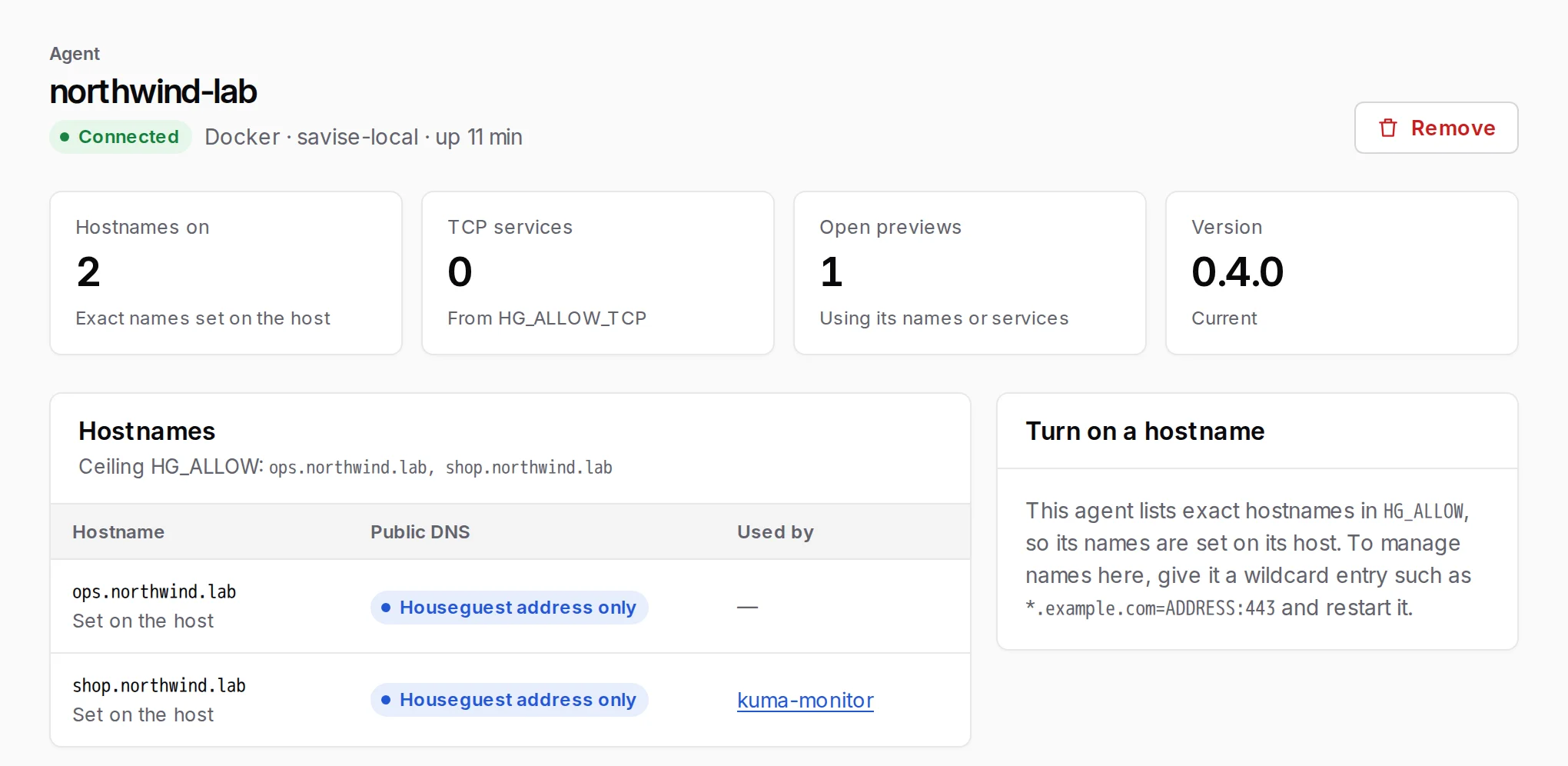
- Open Agents › your agent and press Turn on a hostname.
- Enter one name per line and press Turn on. The agent applies it at once, with no restart.
Turn off removes a name, except while an open preview uses it.
To change the lists themselves, edit HG_ALLOW or HG_ALLOW_TCP, then recreate the container with the
same volume (docker rm -f houseguest-agent, then your docker run again without HG_JOIN, or docker compose up -d). The agent page shows the new lists under Set on the host once it reconnects.
Update, rotate or remove an agent
Section titled “Update, rotate or remove an agent”- Update: when a newer agent is published, the agent page shows Update to version with the exact commands for Docker, Docker Compose or the installer. The console cannot update an agent for you. See Update an agent.
- Rotate its key: there is no in-place rotation. Join the host again as a new agent, then remove the old one. See Rotate an agent’s key.
- Remove: on the agent’s page press Remove, type the agent’s name and press Remove agent. It disconnects at once and can never reconnect with its key; open previews that used it stop reaching the app. Then remove the container and its volume on the host. See Remove an agent.
Two optional additions to the command: --network host if Docker’s default network cannot reach the app’s
address, and HG_EDGE_IP if your local DNS answers for tunnel.houseguest.dev itself (Network
notes).
Domains and hostnames
Section titled “Domains and hostnames”Viewers reach an app in one of two ways. Pick per preview; you can use both in one workspace.
| The app’s own hostnames | Houseguest addresses | |
|---|---|---|
| Viewers open | app.lab.example.com |
app.acme.houseguest.page |
| You set up | A verified domain, plus a public DNS record per name (or one wildcard record) | Nothing. Works as soon as an agent forwards the name |
| App changes | None: the app sees its usual name | Links the app writes with its internal hostname do not work; an SSO login in the app needs the address added as an allowed redirect |
| Best for | Apps whose links and logins are tied to their real name | Quick shares, internal-only names such as wiki.corp.internal, no DNS access |
Verify a domain
Section titled “Verify a domain”- Go to Domains & addresses and press Add domain. Enter the narrowest domain you control that covers
your app’s names (for example
lab.example.comrather thanexample.com) and press Add. - At your public DNS provider, create the TXT record the page shows: name
_houseguest.lab.example.com, valuehouseguest-verify=…. Use Copy for both. - Press Check now. Houseguest also checks by itself every 10 minutes for 7 days. The domain then shows Verified, and it covers every name under it.
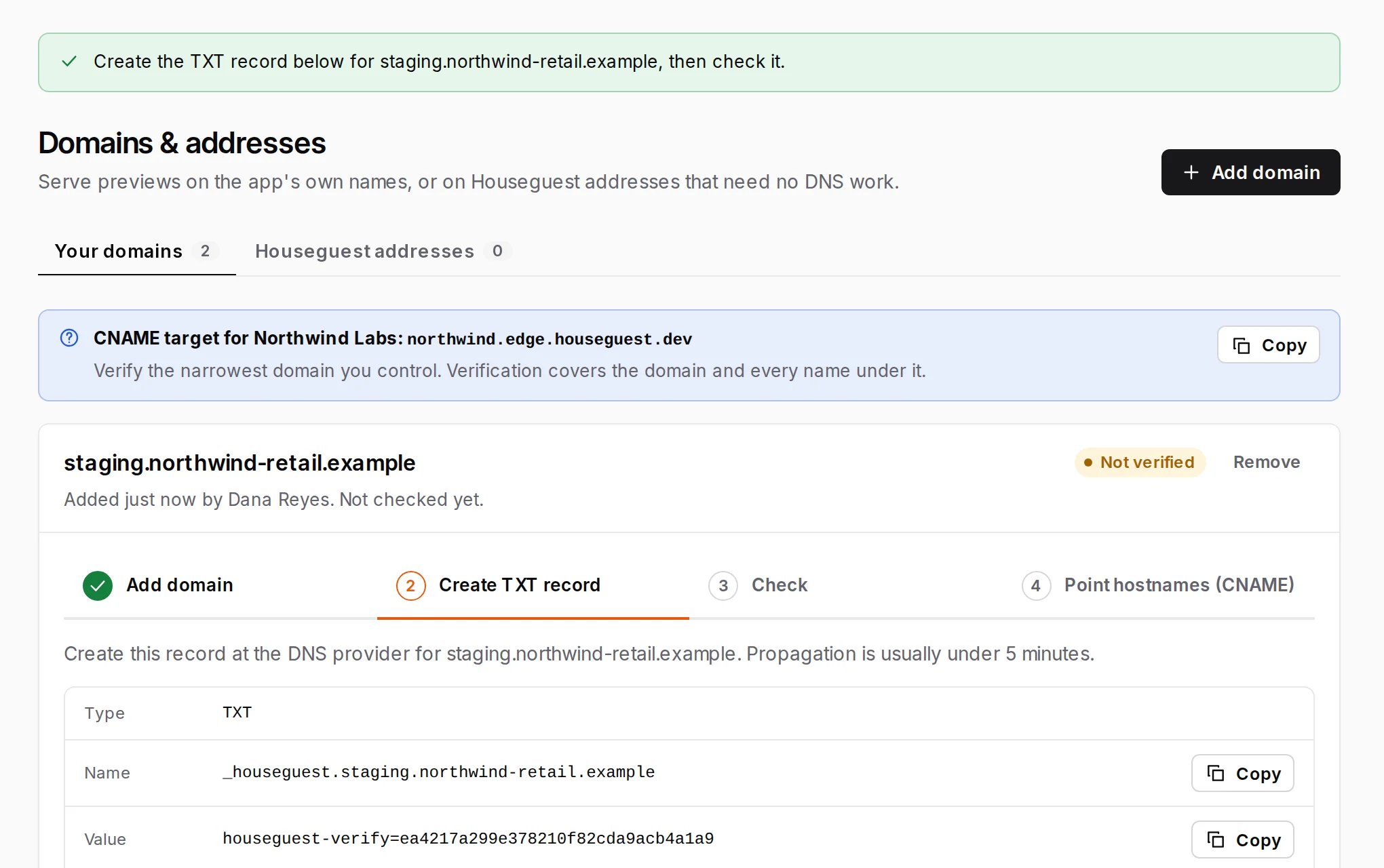
Point hostnames at the edge
Section titled “Point hostnames at the edge”For each hostname you will share, create a public DNS record pointing at your workspace’s CNAME target,
shown at the top of Domains & addresses (<short name>.edge.houseguest.dev):
- Preferred:
app.lab.example.com CNAME acme.edge.houseguest.dev - Many names: one wildcard record,
*.lab.example.com CNAME acme.edge.houseguest.dev - Where a CNAME is impossible (a zone apex): an A record to the address the agent’s page shows
On the agent’s page, the name’s Public DNS column turns from DNS missing to DNS ok.
Rules that save a support call:
- Make the records DNS-only. A CDN proxy in front (such as Cloudflare’s orange cloud) hides the edge, and the certificate cannot be issued.
- Do not add an AAAA (IPv6) record for a shared name.
- Your internal DNS does not change. On your own network the names keep resolving to the app as before.
- Only one workspace can verify a domain. If another account already verified it, verify a narrower domain you control, or contact us.
- A domain cannot be removed while an open preview uses a name under it.
Certificates, and why your hostnames become public
Section titled “Certificates, and why your hostnames become public”The edge gets a certificate for each shared hostname by itself, from a public certificate authority, as soon as a connected agent forwards the name and its public DNS points at the edge. A wildcard DNS record still means one certificate per name. There is nothing to upload or renew.
Houseguest addresses
Section titled “Houseguest addresses”Every name a connected agent forwards can be shared as <label>.<short name>.houseguest.page. The label comes
from the first part of the internal name, so wiki.corp.internal becomes wiki.acme.houseguest.page. An
address is created the first time a preview uses it and never changes, so you can register it once as a
redirect in your app’s SSO settings.
Domains & addresses › Houseguest addresses lists each address, the internal name behind it, its agent and the preview using it; names not yet used show the address they will get (Assigned on first use).
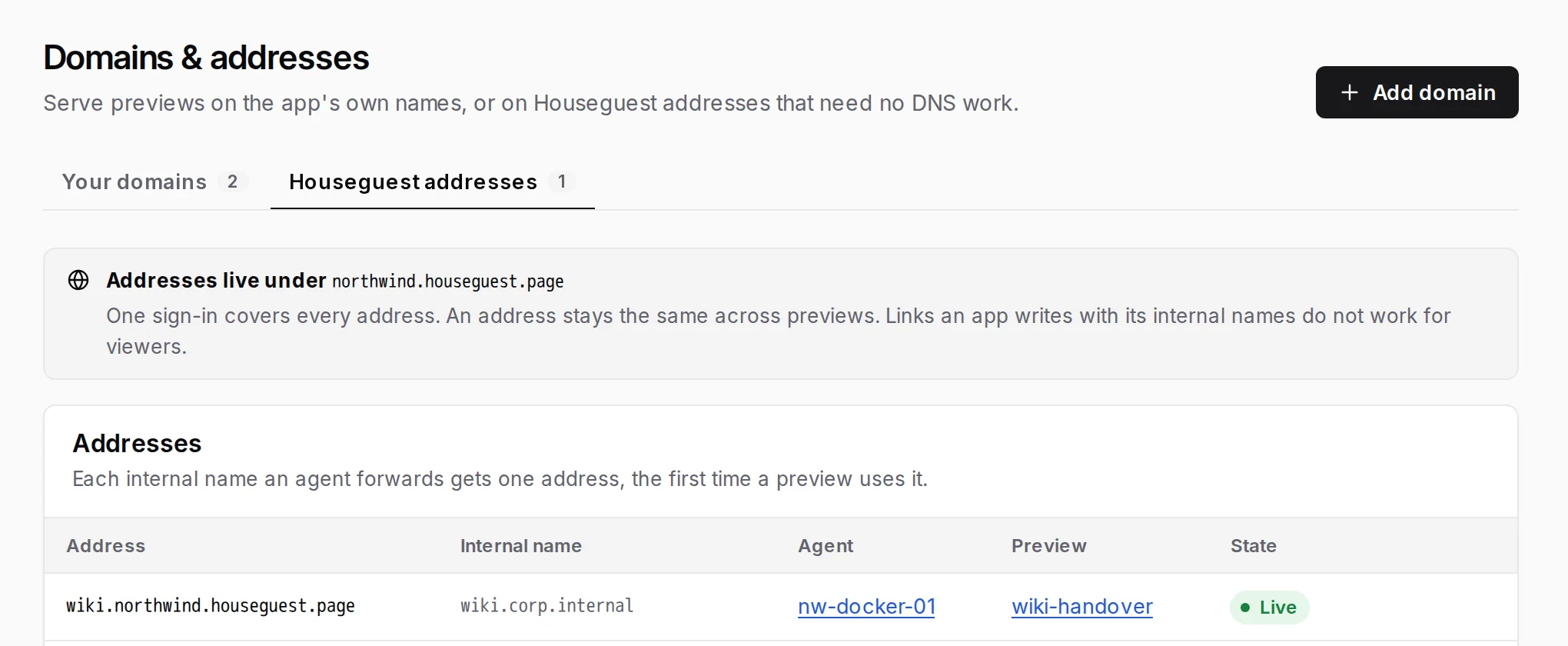
Know the limits before you choose addresses: viewers see houseguest.page, not your domain; Houseguest rewrites
the address in redirects, cookies and CORS headers but never inside pages, so absolute links to the internal
name break; and an address preview cannot gain hostnames later (open a new one instead). Your workspace’s short
name is part of every address, so it cannot change once you have one. Details: Domains and
addresses.
People and permissions
Section titled “People and permissions”Everyone on your team who opens previews needs a console account, called a member. Viewers do not: they never get an account and never count as members.
Invite members
Section titled “Invite members”- Go to Members & roles › Members and press Invite.
- People or groups: type a work address and pick it to invite by email. You can add several people, or existing members and groups, before you continue.
- Role and scope: choose a role (below) and Where it applies: Whole workspace, A share group or A single preview.
- Review: leave the invitation email ticked, add an optional message, and confirm.
The person can sign in at once, with or without the email. Until they do, they are listed under Pending invites with Resend and Revoke; an invitation nobody uses lapses after 7 days, and Resend renews it.
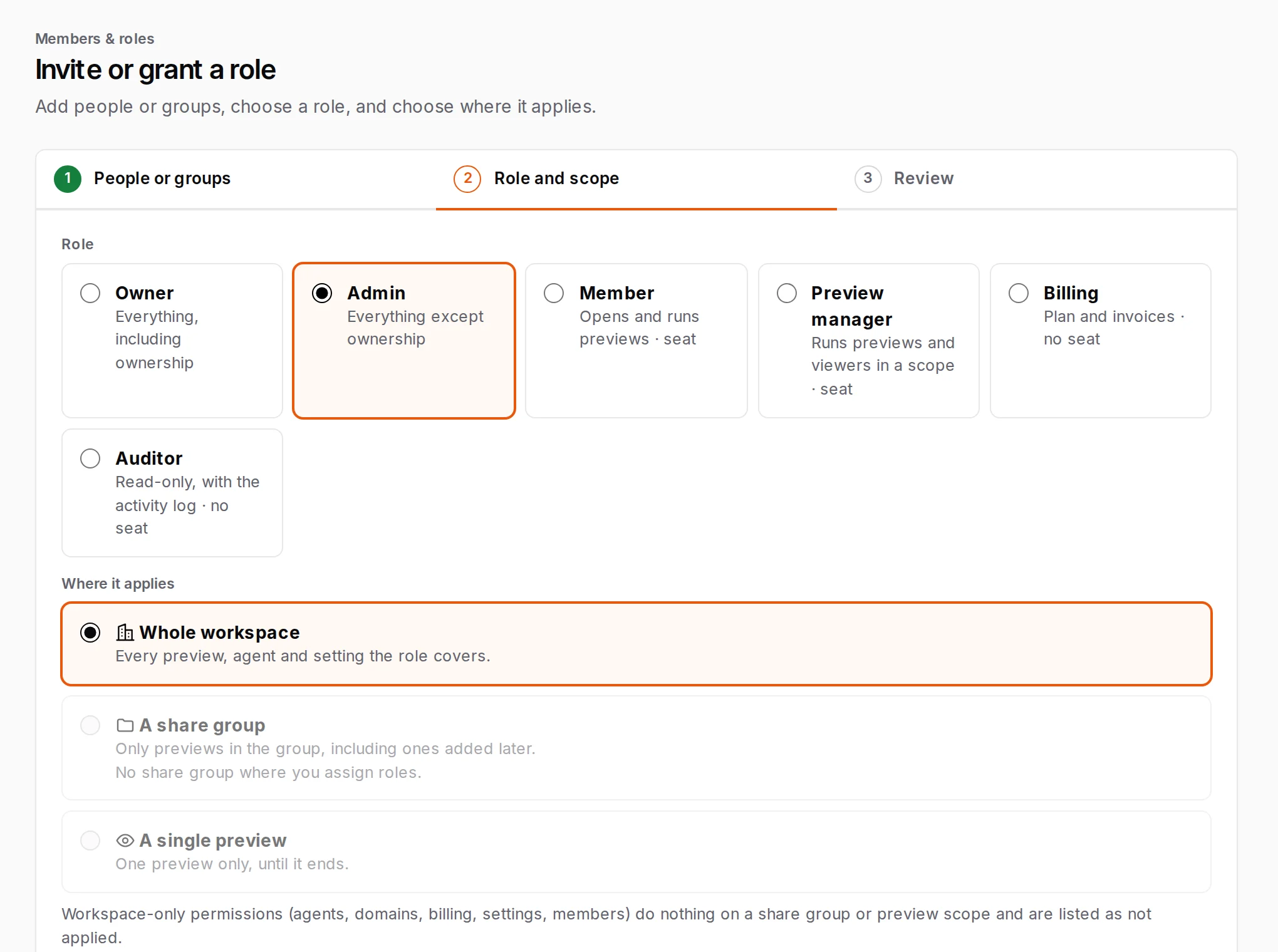
Each member has one base role for the whole workspace. You can add more roles on top for one share group or one preview (a grant).
| Role | Can | Takes a seat |
|---|---|---|
| Owner | Everything, including transferring ownership and deleting the workspace. At least one is required | Yes |
| Admin | Everything except owning the workspace; cannot make anyone an Owner | Yes |
| Member | Opens previews and runs the ones they opened (people, hostnames, TCP, extend up to 7 days out, end). Sees agents, domains, members and settings, read-only. The default | Yes |
| Preview manager | Runs any preview in its scope, including extending past 7 days. Granted on a share group or a single preview | Yes |
| Billing | Plan, seats and invoices. Sees members and settings; no previews | No |
| Auditor | Reads everything, including the activity log; exports; changes nothing | No |
| No workspace role | Nothing until granted a role on a share group or a preview | No |
The people who create previews are Members; their guide is Getting started for sharers.
Change someone’s role on their member page (Members › the person). The page also lists every permission they hold and where it comes from. Disable stops them opening the workspace but keeps their roles; Remove ends their membership. Previews a removed member opened stay open until they end.
Groups, custom roles and share groups
Section titled “Groups, custom roles and share groups”- A group is a named set of members, so one grant covers all of them, now and later: Members & roles › Groups › New group, then Add people and grant the group a role. Groups are kept by hand; linking them to your identity provider is not available yet.
- Roles & permissions shows the built-in roles side by side. Built-in roles cannot be edited; Duplicate one to start a custom role, tick the permissions and save. A permission marked scopable also works when the role is granted on one share group or preview.
- A share group is a named set of previews, such as everything shown to one customer. Create one under Share groups, fill it (from the Share group field when you open a preview, Add previews on its page, or Fill automatically from one agent), then grant a role on it: for example Preview manager to a person. They can then run the group’s previews and nothing outside it.
Details: Members and roles and Groups and share groups.
Guardrails you will notice
Section titled “Guardrails you will notice”- You can only grant a role, at a scope, that you hold there yourself. Only an Owner grants Owner.
- The workspace always keeps one enabled Owner, so removing, disabling or demoting the last one is refused.
- One email address is one person. Someone invited to several workspaces keeps one sign-in and one set of second-step methods, and picks the workspace with the switcher (see Several workspaces).
Settings to review now
Section titled “Settings to review now”Settings has four tabs. The ones worth setting on day one:
- General: workspace name and short name, Time zone for display.
- Security: console Session length (30 days by default), the Second sign-in method policy, Sign out all members, single sign-on, and Audit streaming (SIEM), which sends the activity log and refused requests to your collector.
- Viewers & email: Allowed viewer domains (when set, invites and standing-access lists accept only those domains), Default preview life, Longest preview, Longest viewer session, and the Email sender name viewers see (“Workspace name via Houseguest” by default).
- Danger zone (Owners): transfer ownership, or delete the workspace.
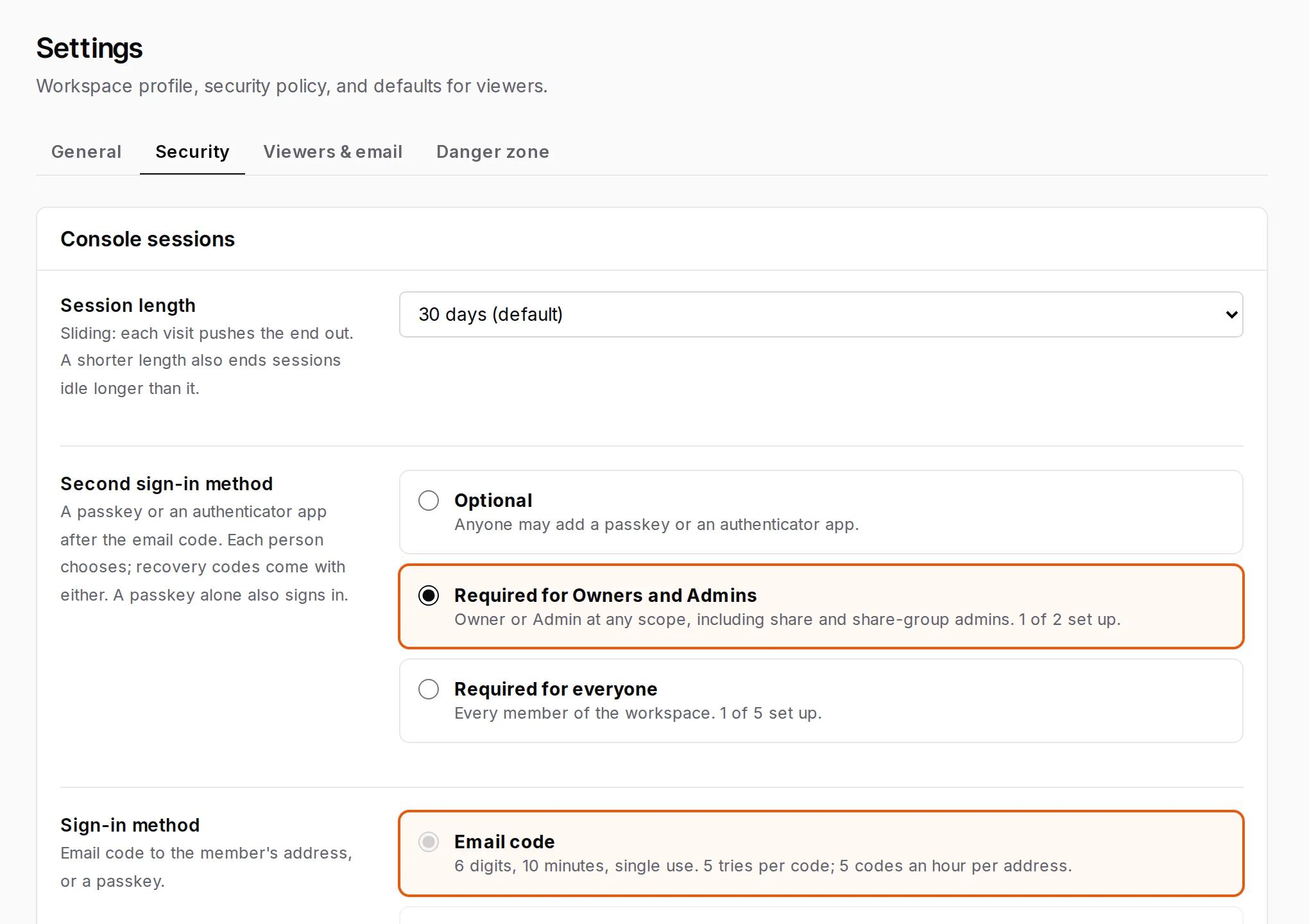
Every setting: Workspace settings.
Your first preview, end to end
Section titled “Your first preview, end to end”A preview is ready to open once an agent is Connected and forwards at least one hostname. Nothing is shared until the last step of the form.
- Press New preview (on Overview or Previews).
- App & agent. Choose The app’s own hostnames or Houseguest addresses. Tick the hostnames this preview covers; every free name starts ticked, so untick the ones you do not mean to share. Pick where Viewers land on. Names in one preview must share a parent domain, so one sign-in covers them all. Give it a Name (2 to 31 lowercase letters, digits or hyphens; viewers never see it) and, optionally, a Share group.
- Who can view. Choose Invite or Standing access (below). Enter People to invite, one address per line. Keep Email the invites and Email code ticked, and add a Message in the email if you like. Without Email code, the link alone opens the preview, so anyone it is forwarded to gets in first.
- How long. Pick 4 hours, 1 day, 3 days or 7 days, or a date under Or end at. Remind me before it ends emails you when it turns Closing soon, and Start later schedules the opening (up to 90 days ahead; the hostnames are held from now, and nobody gets in or receives email before the start).
- Review. Check the summary and the plan meters, then press Open preview.
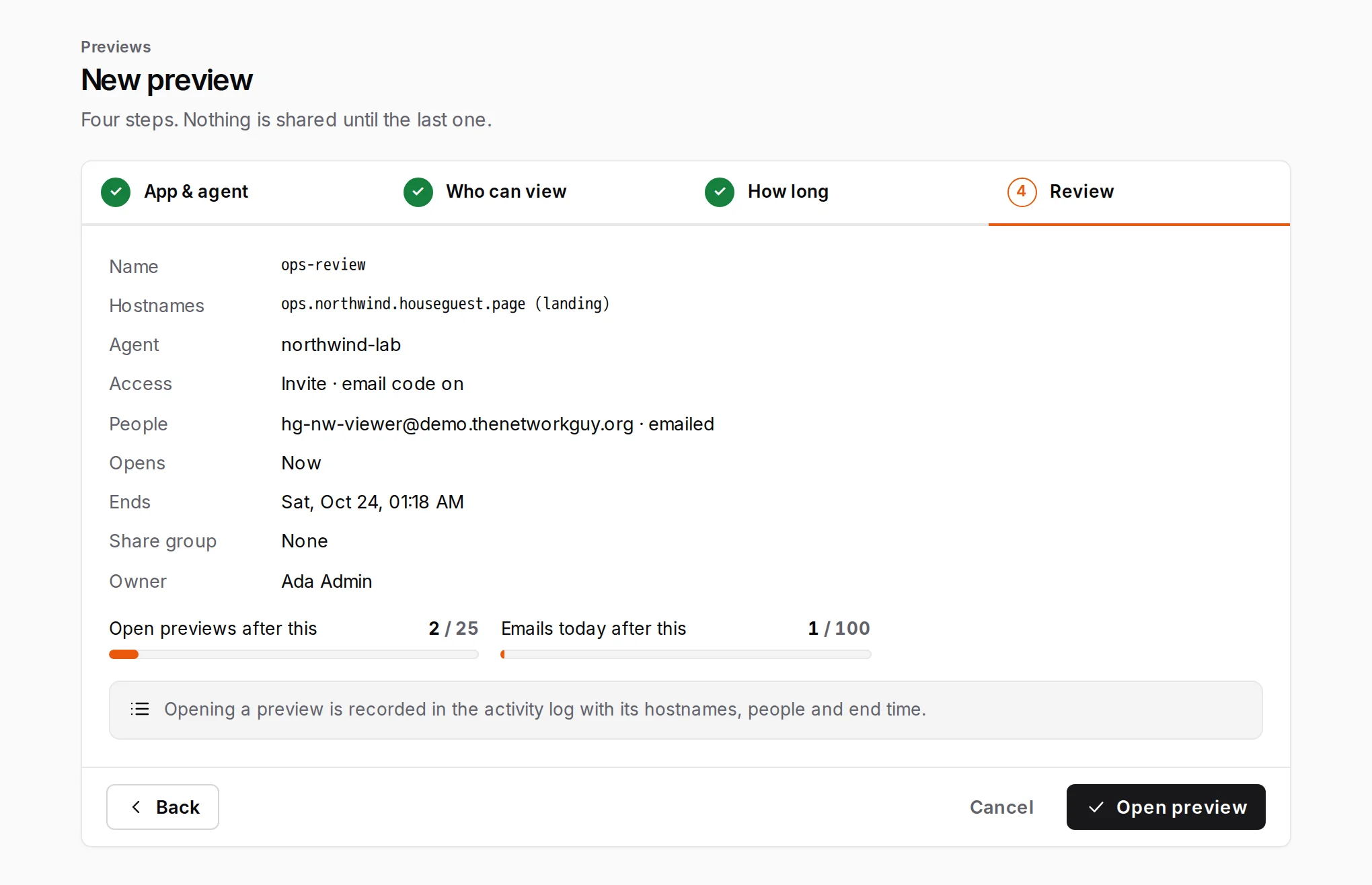
The preview’s page opens. Its header carries Copy link, Extend, Invite and End preview; below are the Viewers, Requests, Hostnames, TCP & SSH and Settings tabs. The sharers’ guide shows each step.
Untick Email the invites if you would rather send the link yourself, for example in a chat with the customer. Each person’s link is then shown once on the preview page, to copy.
More options on the Who can view step matter for some apps:
- Open without sign-in lists paths that pass without a session, written as
hostname/path, such asapi.lab.example.com/health. - Cookie-less calls from a viewer’s network lets requests without the preview’s cookie through from the address a signed-in viewer used in the last 15 minutes. It is for apps that call their API with a bearer token. Everyone behind the same office network shares that address, so leave it off unless the app needs it.
See Apps that make requests without cookies.
What the viewer experiences
Section titled “What the viewer experiences”- An email from “Your workspace via Houseguest” saying who shared which hostname, with your message, the link and when it closes.
- The link opens a confirmation page naming the preview, the person and the end time. Link previewers in chat and mail tools cannot use it up. They press Email me a code.
- A second email carries a 6-digit code. They enter it and press Open preview. (Viewers can also use Sign in with Microsoft, or your single sign-on if their address is in your domains.)
- They land on the app. Every hostname in the preview works with that one sign-in until the preview ends or you revoke them.
Viewers need no account, app or VPN. The invite works in one browser: the same link opened anywhere else says This invite link no longer works, so a forwarded email is useless. Someone who needs a second browser, or who lost the link, needs a new invite. What they see, with pictures: What viewers see.
Test it yourself first: invite your own address and open the link in a private window or another browser, so the viewer’s sign-in does not mix with your console session.
Standing access
Section titled “Standing access”Standing access is a preview with one link and a list of who may use it, for weeks or months: a customer’s
whole team during a pilot, a partner’s support staff. Anyone whose address, or whose company’s @domain, is on
the list signs in with an emailed code whenever they need to.
- Press New preview (or Standing access › New standing access, which preselects it).
- On App & agent, tick the hostnames and name it as for an invite.
- On Who can view, choose Standing access. Under People on the list, enter addresses or
@company.com, one per line. Email them the link mails each exact address (an@domainentry gets no email). - On How long, pick 30 days, 90 days or 1 year, and a Viewer session length: how long one sign-in lasts before a new code is needed (from 8 hours to 90 days, or until the preview ends; 7 days by default).
- Open preview. Send people the landing address, for example
https://crm.lab.example.com/.
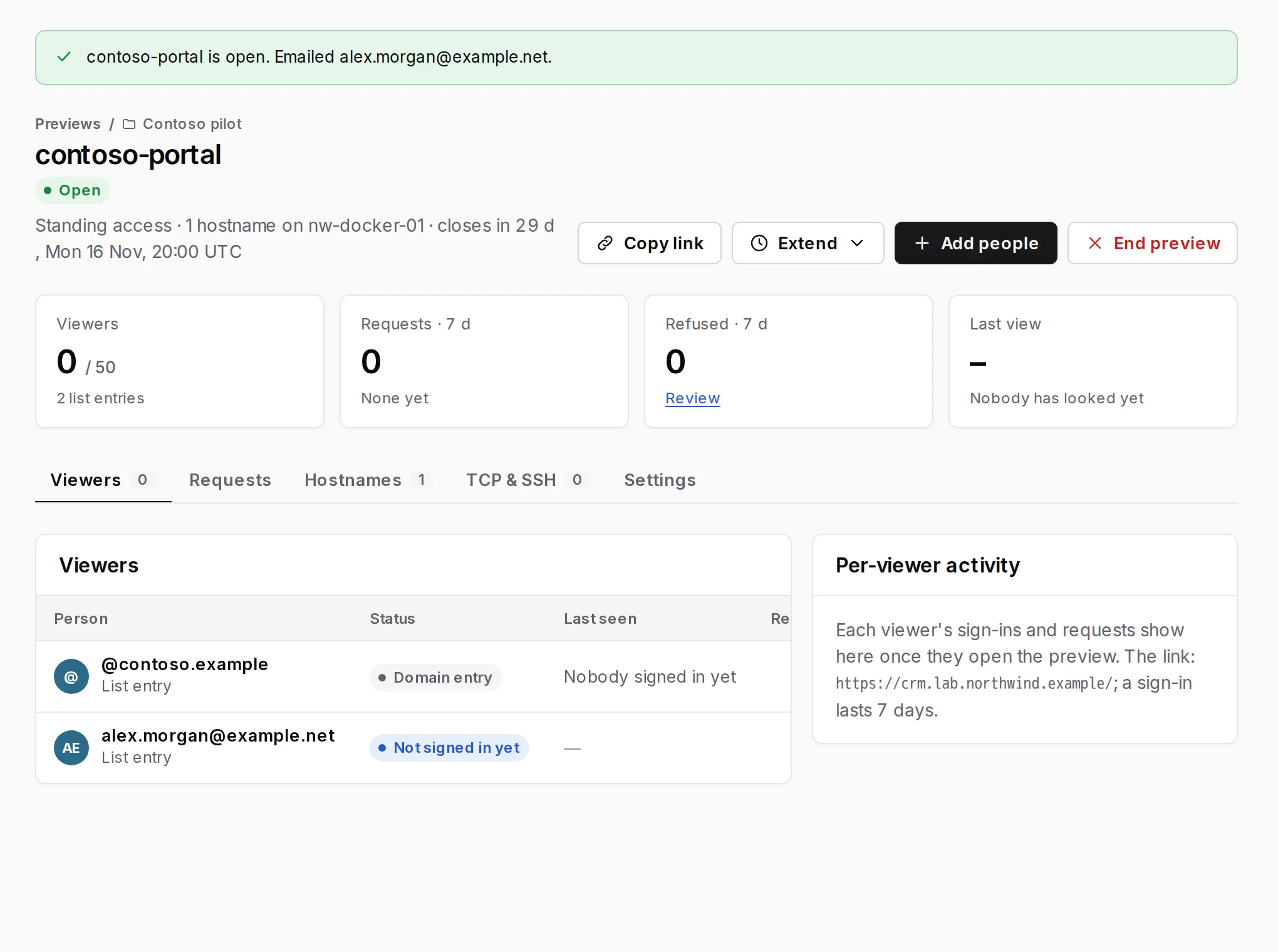
What a listed person sees: a page titled Sign in to the preview of hostname. They enter their work email and press Email me a code, then enter the code. The page answers every address the same way, so it never reveals who is on the list; someone not on it simply never receives a code.
Managing the list:
- On the preview, Add people adds entries (and can email them); Remove next to an entry takes it off and signs out everyone it covered, at once.
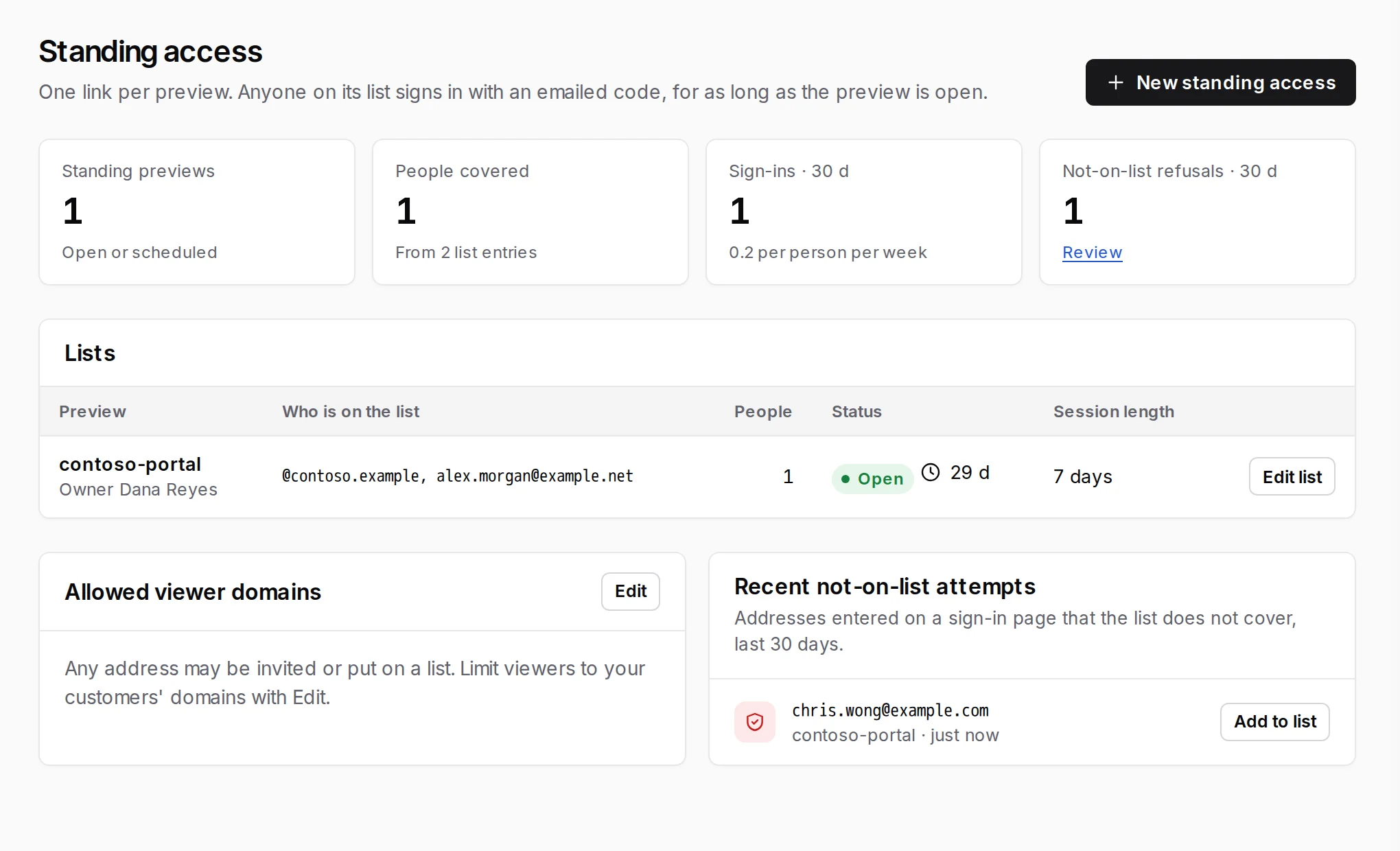
- Standing access in the sidebar shows every list in one place with Edit list, plus Recent not-on-list attempts: addresses that tried to sign in and were not covered, each with Add to list.
- To let back in someone you revoked, or who was covered by an
@domainyou removed, add their exact address. Re-adding the@domainalone does not restore them. - Allowed viewer domains (on the same page, or Settings › Viewers & email) limits every invite and list in the workspace to the domains you name.
TCP and SSH
Section titled “TCP and SSH”A preview can also carry SSH, a database or any other TCP service, with the same sign-in and the same end time. TCP services and the browser terminal are included on Early access, Pro and Business, not on Free.
- On the agent’s host, add the service to
HG_ALLOW_TCPas an exactname:port=internal-address:portentry, for examplessh.lab.example.com:22=10.0.0.10:22, and recreate the container with the same volume. The name is what viewers type; it needs no DNS. The agent page then lists it under TCP services. - On the preview, open the TCP & SSH tab and press Add TCP service. The tab then shows the commands viewers run. Remove stops new connections at once; open ones run until they close.
- Tell the viewer what to run. They have two ways in:
houseguest command line |
Browser terminal | |
|---|---|---|
| For | Any TCP service: SSH, Postgres, RDP, Redis | SSH only |
| Viewer installs | One houseguest binary |
Nothing |
| What the edge sees | Encrypted bytes only: SSH stays SSH, end to end | The SSH session in the clear, as it sees web previews |
With the command line, the viewer signs in once with houseguest login <preview address>, approves the
sign-in in the browser where they opened the preview, then connects with ssh -o ProxyCommand='houseguest connect %h:%p' [email protected] or houseguest forward 15432 db.lab.example.com:5432. The download
details for houseguest come with your early-access invitation; pass them on to your viewers. The browser
terminal needs nothing installed: Open terminal on the TCP & SSH tab gives the address to send. Both, step
by step: TCP and SSH.
Watching, extending and revoking
Section titled “Watching, extending and revoking”On the preview
Section titled “On the preview”- Viewers tab: each person’s status (Invite sent, Signed in, Revoked and so on), when they were last seen and how many requests they made. Click a person for their own timeline: code sent, invite accepted, each page.
- Requests tab: what the edge decided for each request, newest 50, filtered by Viewers, Sign-in, Refused, All or Monitors. Most refused requests are a browser’s first visit before sign-in; that is normal.
Across the workspace
Section titled “Across the workspace”- Activity log: every console change, sign-in, agent connect and disconnect, and viewers’ sign-in steps, with who, what and when. Filter it, open a row for the full record, Export a CSV. Kept for one year; to keep it longer, stream it to your SIEM (Settings › Security).
- Insights: viewer requests, unique viewers and sign-ins, top previews, why requests were refused, when viewers look, devices, and usage against your plan, with Export CSV.
- Overview and the bell flag previews closing soon and agents that went offline.
Details: Activity, requests and insights.
Extend
Section titled “Extend”On the preview, Extend offers + 4 hours, + 1 day or + 3 days for an invite (+ 1 day, + 7 days, + 30 days or + 90 days for standing access), or Pick a date…. Invites can run at most 7 days from now and standing access 1 year. Overview › Closing soon has a one-click Extend, and Previews can extend several at once (Extend 7 days). Viewers who are signed in stay signed in.
Revoke one person
Section titled “Revoke one person”On the preview’s Viewers tab (or the Standing access list), press Revoke (or Remove for a list entry) next to the person and confirm. They lose access at their next request: browser sessions, unused invites and command-line sign-ins all end. To let them back in, send a new invite or add their exact address to the list. Nothing old comes back.
End a preview
Section titled “End a preview”Press End preview, type the preview’s name and confirm. Every request then gets “This preview has ended”, and its hostnames are free for a new preview at once. Several previews can be ended together from Previews (tick them, then End previews).
Several workspaces and the switcher
Section titled “Several workspaces and the switcher”One email address is one person in Houseguest, and that person can belong to several workspaces: your own, a partner’s, a second region. Your name, sign-in and second-step methods are shared; your role is set separately in each workspace.
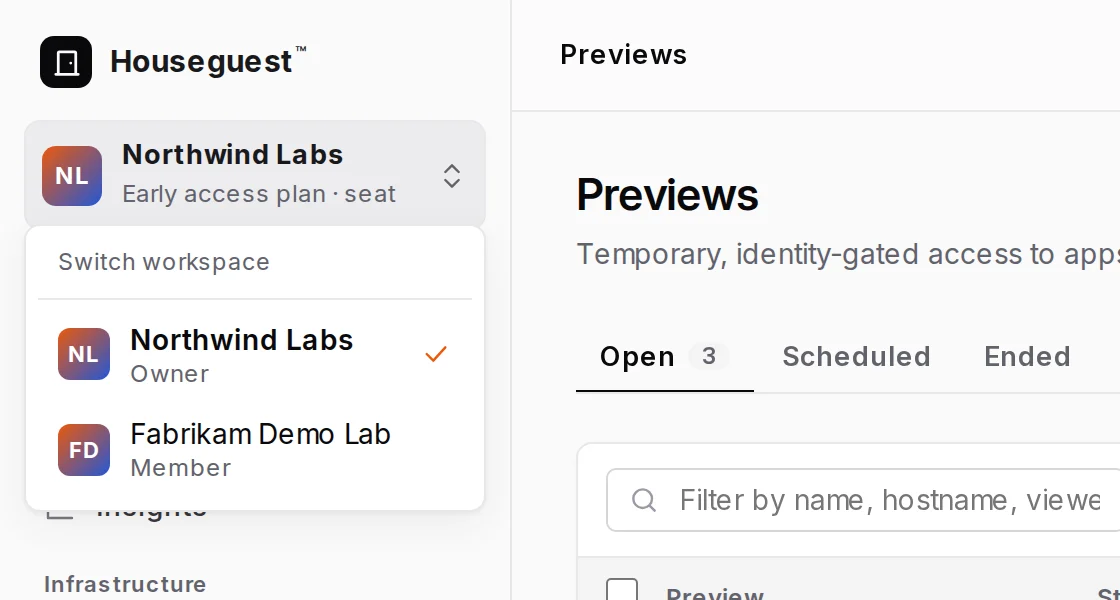
- With two or more workspaces, the block at the top of the sidebar becomes the switcher. Click it to see each workspace with your role there and a check on the current one.
- Pick a workspace. The console opens its Overview.
- If that workspace requires a second step for your role and this session has not used one, you are asked for it first, or asked to set one up.
Where sign-in lands: your Preferred workspace if you set one (Sign-in and security › Workspaces; the default is Last used), otherwise the one you used last.
Each workspace is separate. Its admins see only your membership there, never your other workspaces. Because your second-step methods also unlock your other workspaces, one workspace’s admin cannot reset them for you; we do that. See Several workspaces.
Security model in plain words
Section titled “Security model in plain words”Sharing one app never shares your network.
| Party | Can | Cannot |
|---|---|---|
| A viewer | Use the preview’s hostnames until it ends or they are revoked | Use a forwarded link without the invited inbox; reach names outside the preview |
| The agent | Reach the hostnames and TCP services on its own allow-list | Accept a name its host did not allow |
| The Houseguest edge | See the requests and responses of an open preview, in order to check each one | Reach any name outside the agent’s allow-list; sign in to your app without a user’s own credentials |
| A compromised edge | Send requests to the allowed names and TCP services at any time | Reach the rest of your network, or widen the allow-list |
What the edge sees. To check every request, the edge terminates TLS, so it sees the traffic of open
previews, as any reverse proxy would. The houseguest command line is the exception: SSH and other encrypted
TCP traffic stays encrypted end to end. If no third party may see your traffic at all, the self-hosted
edition runs the same edge on your own Linux server.
Your side of the bargain: keep the agent’s allow-list as narrow as you can (exact names beat a wildcard), keep Owners and Admins few and their second step on, review Recent not-on-list attempts and the Activity log now and then, and remember that shared hostnames appear in public certificate logs.
The full model, including what is kept and for how long: Security model.
Limits in early access
Section titled “Limits in early access”New workspaces start on the Early access plan. The sidebar’s meters and Billing show where you stand; if you need more, contact us and the limit can be raised.
| Limit | Early access |
|---|---|
| Agents | 5 |
| Open previews at once | 25 |
| People per preview | 50 |
| Emails per day (invites, codes, reminders; resets 00:00 UTC) | 100 |
| Different people sent invitations per day | 50 |
| Invitations per hour | 30 |
| TCP services and the browser terminal | On |
| Invite preview length | Up to 7 days |
| Standing access length | Up to 1 year |
| Scheduling ahead (Start later) | Up to 90 days |
A hostname can be in one open preview at a time, and all hostnames in one preview must share a parent domain. What is not available yet (SCIM, an admin API, IPv6 for shared names, agent self-update and more): Limits in early access.
Troubleshooting
Section titled “Troubleshooting”Start with two places: Agents (is the agent Connected, and does it forward the name?) and the preview’s Requests tab (what did the edge decide?). The most common cases:
| Symptom | Likely cause | What to do |
|---|---|---|
| Add agent stays on Waiting for connection… | The host cannot reach tunnel.houseguest.dev on 443, or the token was mistyped or expired |
Read the agent log; see Agent troubleshooting |
| A hostname is not offered in New preview | No connected agent forwards it, it is in another open preview, or its domain is not verified | Turn it on under the agent; end the other preview; verify the domain, or use Houseguest addresses |
| Browser shows a certificate or connection error on a shared hostname | Public DNS does not point at the edge yet, the record is CDN-proxied, or an AAAA record exists | Fix the record (a DNS-only CNAME to your target), wait a minute, reload. The agent page should say DNS ok |
| Viewer sees “The app is not reachable right now” | No connected agent forwards the name right now | Check Agents |
Houseguest agent: the app did not answer. |
The agent is connected but cannot reach the app or does not trust its certificate | Fix the address, add --network host, or give the agent your internal CA |
| Viewer did not get the invite or the code | Spam or quarantine, a typo, the daily email limit, or a new code asked for within 30 seconds | The preview’s Requests › Sign-in shows Code sent if it went out. Have them check spam, then Send a new code |
| Standing-access person never gets a code | Their address is not covered by the list (the page does not say so, by design) | Standing access › Recent not-on-list attempts › Add to list |
| Viewer signs in, then lands back on the sign-in page | The app calls a hostname not in the preview, or calls without cookies | Add the hostname on the Hostnames tab, or see Apps that make requests without cookies |
Console: Not allowed: this needs the "…" permission. |
The member’s role lacks it | Grant a role on their member page, the preview, or its share group |
Everything else: Troubleshooting.
Getting help
Section titled “Getting help”Email [email protected] for questions, limit increases or a locked-out Owner, and [email protected] for a security report. Include your workspace’s short name, the preview or agent name, roughly when it happened (with time zone), and what the agent log or the preview’s Requests tab shows. Never send join tokens, invite links or recovery codes. See Get help.
© 2026 Houseguest Technologies LLC. Houseguest™ is its trademark.7723 Tylers Place Blvd., Box #119, West Chester, OH 45069